
A podcast is the easiest long video to clip and the easiest to mess up at the door. The source is often an audio file, an MP3 from a recorder, a WAV from a studio, an M4A from a phone, and the clipping tool has to accept it before any AI moment-finding happens. That makes a podcast clipper a video file format compatibility checker tool with a timeline attached. So before the five apps, here is the uncomfortable number our database produced when we went looking for audio support.
Almost nobody states audio support
Of the 206 tools in our database, 138 publish a supported file format list. Those lists are thorough about video and images, and nearly silent about audio. MP3, the default podcast format, is named by 6 tools. A generic word, audio, appears in 5. WAV is named by 2, AAC by 2, OGG by 2. M4A, the format iPhones record voice memos in, is named by none. FLAC is named by none.
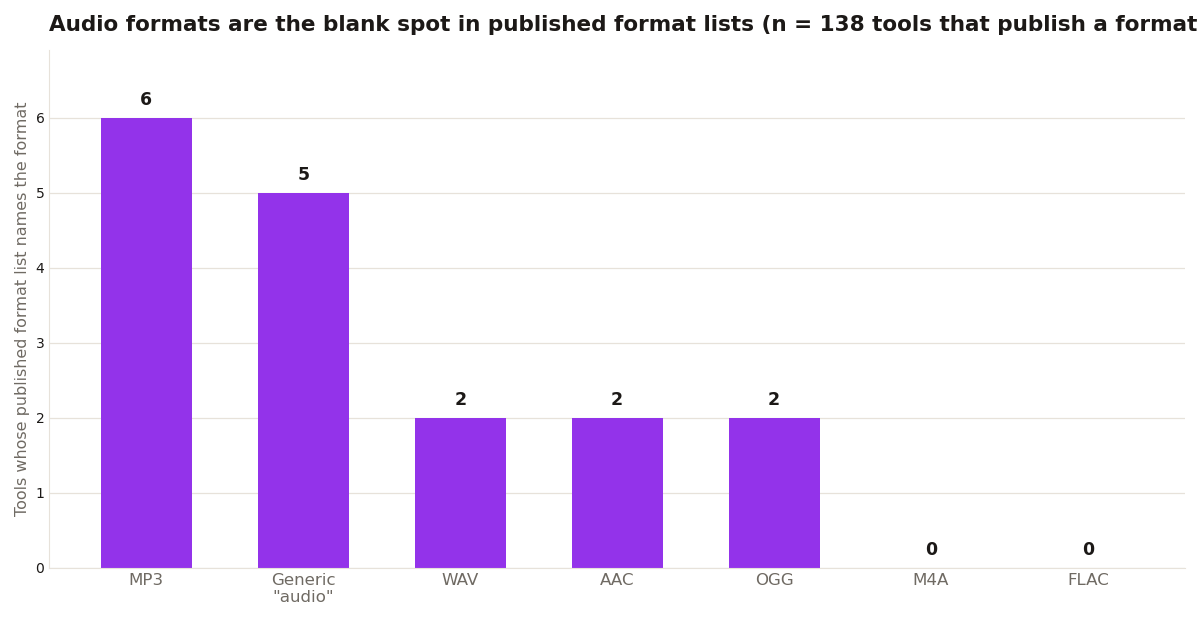
The breadth numbers tell the same story from the other side. A typical published list names three or four major formats in total, and the widest names eight. Lists are written to sell video features, so audio rides along unnamed even in tools that happily accept an MP3 upload. The lesson is not that the apps below reject audio. It is that you cannot tell from the marketing page. The only reliable test is a small file of your own, in your actual format, uploaded before you commit to a plan.
The 5 apps
1. Opus Clip: the category leader. Free tier gives 60 credits a month (watermarked); Starter is $15/month for 150 credits, Pro $29/month for 300. One credit equals one minute of source video. Virality scores rank each clip. 2. Vizard: free tier with 60 upload minutes a month at 720p. Creator plan around $29/month (about $14.50 billed annually). Clip, caption, and schedule in one browser tab. 3. Qlip.ai: AI clipping with multi-language captions. Good for podcasts with international audiences. 4. CapCut: free, and its auto-captions are excellent. No AI moment-finding, so you pick the moments yourself. 5. Descript: edit video by editing the transcript, then pull clips. Best when the podcast also needs real editing first.

Run your format through the checker first
Because stated support is this thin, treat every podcast workflow as unverified until a test file passes. Our format compatibility checker searches the database this chart came from, so you can see exactly what a tool's record states, and how much it leaves unsaid. If your archive is M4A voice memos, batch convert to MP3 or WAV first and remove the doubt entirely. It takes minutes and it protects the whole back catalog, not just the next episode.
What a format list is actually telling you
The breadth of the lists explains the silence. Count the major formats each published list names and the middle is modest: 35 lists name three major formats, 33 name four, 18 name five, and only 2 name as many as eight. At the thin end, 17 name just one. A list written at that length is a summary, not a contract, and audio is the first thing summaries drop. Video podcasters feel this less, since their MP3 or WAV usually arrives wrapped with a video track, but audio only shows, voice memos, call recordings, and recorder files live entirely in the dropped part of the summary.
So the checker habit for podcasters is specific. Test with the format you actually publish in, not the format you hope to switch to someday. Test with a full length file, not a ten second sample, because some tools accept a format for preview and bill or block it at export. And test before a season starts, not before an episode drops. The apps above are all capable; the database simply cannot promise which of them takes your M4A. Your test file can.
Pick Opus Clip or Vizard when volume matters and you trust the AI's picks. Pick CapCut when you want control and zero cost. Either way, captions are non-negotiable: most Shorts are watched muted.