
Reviewing edits on a phone sounds simple until the last step: getting the clip out. A mobile app to review video edits lives or dies at export, and export on mobile is a much narrower contract than on desktop. We pulled the mobile slice of our database to see what that contract actually says, because the gap between what phones claim and what they state turns out to be wide.
The mobile slice: 73 tools, one safe format
Of the 206 tools in the database, 73 list a phone platform: 72 list iOS, 63 list Android, and 62 list both. Only 38 of those 73 publish a supported file format list. Among those 38, the export and input story is brutally simple. MP4 is named by 19. MOV follows at 6, GIF at 3, MP3 and AAC at 1 each. MKV is named by none of them. WebM is named by none of them.
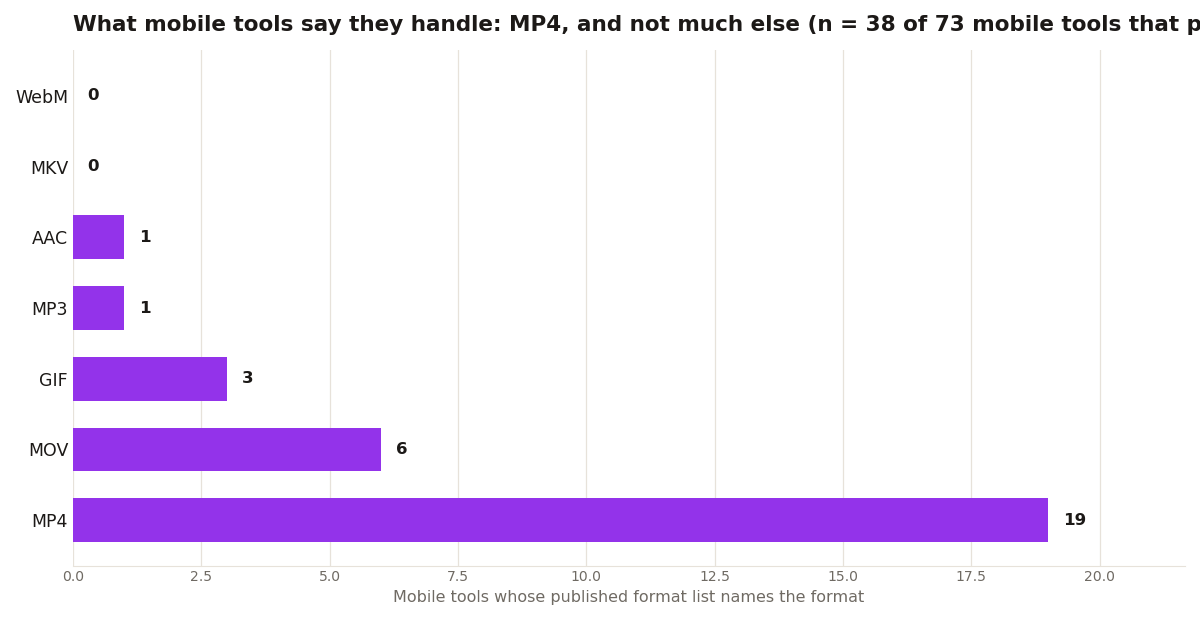
Resolution claims are just as sparse. Only 9 of the 73 mobile records state a maximum resolution at all. The ones that do are specific: VN Video Editor states 4K at 60fps, YouCut states 4K, and Premiere for iPhone states 4K HDR. Everyone else lets you find out at export time. So the working rule for iOS repurposing is: if the long video is already MP4 or MOV, any serious app below will finish the job. If it is MKV or WebM, convert it on a desktop first, because no mobile tool in this database even claims those formats.
The 5 apps
1. CapCut (free): auto-captions, trending templates, 4K export on newer iPhones. The default for a reason. 2. VN Video Editor (free): pro timeline features with no watermark. Keyframing and curves on a phone. 3. Captions (freemium): AI captions, eye-contact correction, and word-by-word highlighting built for talking-head clips. 4. Splice (subscription): music-synced editing with beat detection. Good for high-energy clips. 5. Opus Clip (web app): Safari handles it fine. AI finds the moments, you download the clips.

Check the pair, phone and format, before you start
The failure mode to avoid is reviewing a whole edit on the phone and discovering at export that the source never belonged there. Our format compatibility checker searches the same records behind the chart: look up the app, read what its record states about formats and platforms, and match it against the file you actually have. Two minutes of checking beats re-editing on a second app.
Phones are photo first, video second
The mobile slice has one more quirk worth knowing before you build a workflow on it. Of the 73 mobile records, the largest categories are mobile photo editors at 19 and mobile video editors at 18, with another 12 consumer photo editors and 8 AI image tools listing phone platforms. In other words, a large share of the mobile shelf is photography software that also runs on your phone, not video software built for it. That is why the format lists skew toward stills and why video specific claims, export formats, maximum resolutions, are the ones so often missing.
It also explains the platform asymmetry: 10 tools in the database list iOS without Android, and only 1 lists Android without iOS. If your workflow is iPhone first, the shelf is deep. The five apps above are the video serious end of it. Treat everything else mobile as a photo tool until its record, or your test export, proves otherwise.
One more check belongs in every mobile workflow: storage and patience. A two hour master at phone resolutions is a big file to move, convert, and re-export on a device that is also your camera and your inbox. The apps above all cope, but the smooth pattern is to keep masters in cloud storage, pull down only what you are clipping this week, and export finished Shorts straight to the platform. The phone is a fine edit bay. It is a poor archive.
The iOS advantage is export quality: iPhones encode H.264 and HEVC cleanly, and apps like CapCut take full advantage. Workflow that works: record or import the long video, run AI clipping in a browser tab for moment discovery, then finish captions and branding in CapCut. Keep every export at 1080x1920. Anything smaller looks soft on modern phones, and you cannot upscale your way out of a blurry master.