
Quality loss comes from re-encoding the video, not from switching containers. If the streams inside are H.264 or AAC, you can remux them into MP4 with zero quality loss. But before the five ways to do it, it is worth asking a prior question: why does the file need converting at all? Usually because the app you want to use does not accept MKV. Searching for an mkv to mp4 converter online is really a search for proof of support, and support is exactly what our database records.
What the format lists say about MKV
Our database tracks 206 image and video tools. Only 138 of them publish a supported file format list at all, and that gap is the first lesson: for a third of the tools on the market, format support is something you discover by dropping a file in, not by reading a spec sheet. Among the 138 that do publish a list, MP4 is the default language. It appears in 72 lists. MOV follows at 44 and AVI at 33. MKV is named by just 20.
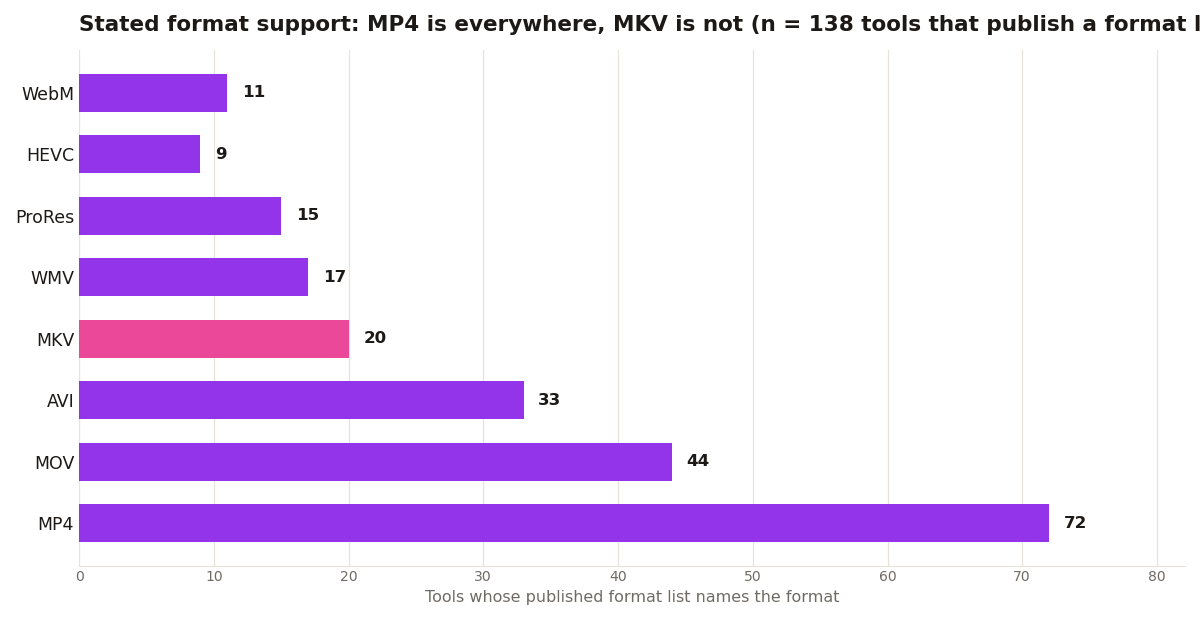
The split inside that MKV number matters more than the number itself. Every one of the 20 tools that names MKV also names MP4, so nothing in the database treats MKV as its only world. The 20 are all consumer video editors (12 of them) or open source tools (8). Not one professional editor and not one mobile app in the database states MKV support in its published list. That is the whole reason this converter question exists: the tools most likely to reject your file are the polished ones, and the tools most likely to accept it are the free ones below.
It also explains why conversion is normally a one-way street. You convert MKV to MP4 because MP4 is stated by 72 tools and understood by effectively everything else, including browsers, phones, and upload forms. Converting the other way buys you nothing unless a specific player demands it.
5 ways to convert without losing quality
1. HandBrake (free): open the MKV, pick the MP4 preset, done. It re-encodes by default, so raise the quality slider to limit the drop.
2. FFmpeg (free): ffmpeg -i input.mkv -c copy output.mp4 remuxes without re-encoding. Zero loss, takes seconds.
3. VLC (free): Media, Convert/Save. Pick the MP4 profile. Simple but always re-encodes.
4. Shutter Encoder (free): a friendlier face on FFmpeg. Choose Rewrap to remux without re-encoding.
5. CloudConvert (web): 25 free conversions a day. Fine for one-offs under a few hundred MB.

Notice that four of the five are free, and three are open source or built on open source parts. That lines up with the database: open source tools state MKV support at a rate the commercial editors do not match. When a paid editor rejects an MKV file, it is rarely a technical limit. It is a product decision about which formats are worth testing.
Check support before you convert
Conversion should be the last resort, not the first step. If your editor is one of the 20 that states MKV support, the file opens as it is and no conversion is needed. Our format compatibility checker searches the same database this chart came from: type a tool name and read what its record actually states, including platform and pricing, before you spend time remuxing. And when the destination is an upload rather than an editor, check the stated list twice. A tool can accept MKV for editing and still export only MP4, which is fine for YouTube and a surprise for anyone archiving masters.
Two neighbours worth knowing: WebM and ProRes
MKV is not the only format living at the edge of the lists. WebM, the web's own video format, is named by just 11 tools, fewer than MKV, because most editors treat it as an export target for browsers rather than an editing source. ProRes, the professional intermediate codec, is named by 15, and HEVC by 9. The pattern repeats at every level: the formats editors state are the formats of finished work, MP4 above all, while the formats of capture and archive, MKV, WebM, camera originals, are stated reluctantly or not at all. If your workflow starts from screen recordings, downloads, or rips, expect to convert. If it starts from a phone or a camera app, you probably never will.
There is one more habit that saves real time: remux first and ask questions later. A remux with FFmpeg or Shutter Encoder takes seconds and changes nothing about the video itself, so it costs nothing to try before a full transcode. If the destination accepts the remuxed MP4, you are done with the original quality intact. Save the slow, lossy re-encode for the cases where the codec itself, not the container, is the problem.
The pro move is remuxing, not converting. If your player chokes on MKV, copy the streams into MP4 and keep every pixel.