
Since iOS 11, iPhones save photos as HEIC by default: half the file size of JPG at the same quality. Windows just does not speak it natively, which is why your photos open as broken icons on a PC. A heic to jpg converter fixes the symptom. The cause is duller and more useful to know: format support across the software market is a patchwork, and HEIC sits in one of the emptiest patches. We know because our video format converter database counts it.
The coverage map: HEIC is a rounding error
The database holds 206 image and video tools, and 138 of them publish a supported file format list. Read those lists as a coverage map and a pattern jumps out. The old, boring formats are everywhere: JPEG is named by 63 tools, PNG and RAW by 49 each, TIFF by 43. The newer formats are barely on the map. BMP, a format from another era, is still named by 7. HEIC and HEIF together are named by only 6, and AVIF by 2.
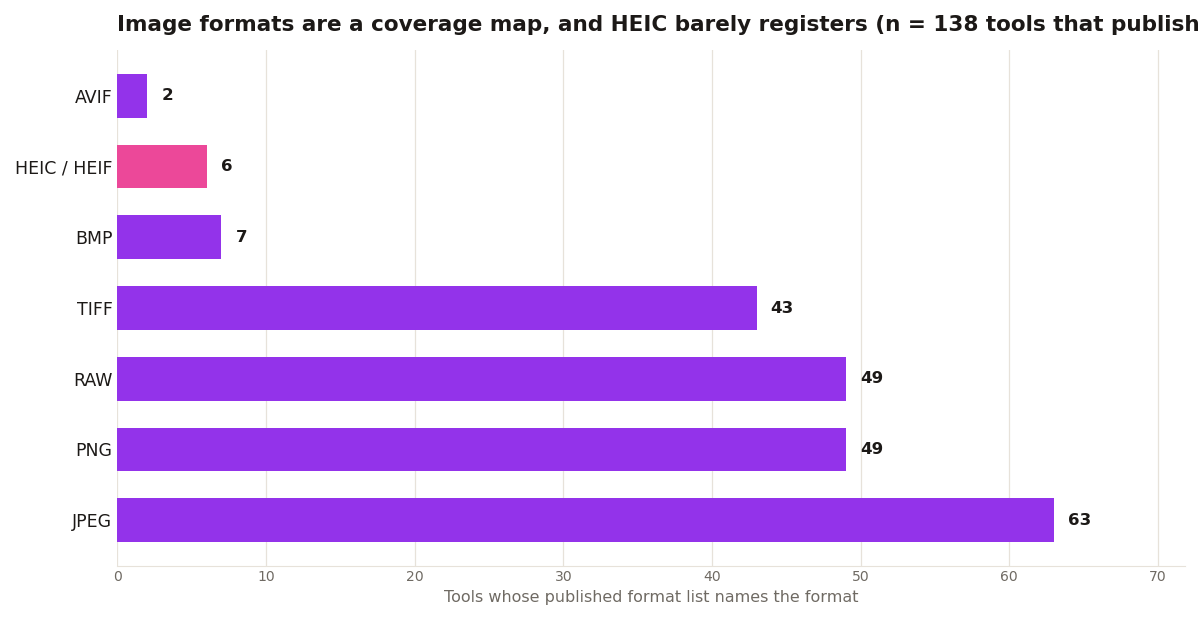
Who are the six that state HEIC support? Photomator, Darkroom, Adobe Lightroom Mobile, YouCam Perfect, Remini, and SILKYPIX Developer Studio Pro. Every one is a photo tool. Not one general purpose editor, and not one of the big video editors, states HEIC in its published list. So the broken icon on Windows is not Microsoft being difficult. It is the normal state of the market: HEIC is a camera format that photo software handles and almost everything else ignores until it is converted.
That is also why the fixes below split the way they do. You either teach Windows the format, convert the files once with a photo tool, or stop producing HEIC in the first place.
Fixes that work

- Install the HEVC Video Extensions from the Microsoft Store (about $0.99). Windows Photos then opens HEIC directly.
- iMazing HEIC Converter (free, Mac and Windows): drag, drop, batch convert to JPG or PNG.
- CloudConvert or FreeConvert (web): fine for a handful of photos.
- On the iPhone itself: Settings, Camera, Formats, Most Compatible. New photos save as JPG from then on.
Check the destination before you convert
Converting everything to JPG by reflex wastes the one thing HEIC is good at, its size. Convert for a destination instead: a form that only accepts JPG, a client on Windows, an editor whose published list has no HEIC on it. Our format compatibility checker searches the same database behind the chart, so you can look up the tool you are sending photos to and read what its record states before you batch convert a whole library. If the tool is one of the six, your photos open as they are.
The other side of the map: RAW and TIFF are fine
The coverage map has a comfortable side too. RAW is named by 49 tools and TIFF by 43, because photographers have demanded them for decades and every serious photo workflow answers. If you shoot RAW on a real camera, your files open almost anywhere. The awkward formats are the phone era ones, HEIC at 6 and AVIF at 2, still waiting for the same treatment. There is also a quieter gap behind the map itself: 68 of the 206 tools in the database publish no format list at all. For those, no chart can help you. The record states platform and pricing and stops there, which is why a test file beats a spec sheet every time.
Practical rule from all of this: keep the HEIC originals. They are smaller, they hold the full quality, and support only ever moves in one direction. Convert copies for the destination that needs JPG today, a form, a client, a Windows machine at work, and let the library stay as the iPhone made it. Converting the masters themselves is the one move you cannot undo, and the coverage map says you will rarely need to: the six tools that state HEIC support are exactly the kind of photo apps most libraries already pass through.
If you shoot video on iPhone too, HEVC shows up there as well, and the same converters handle it. And once your footage is in an editable format and you need it cut into Shorts, ReelCut runs the whole clipping pipeline as a service at $9.99 one-time per video.